AMIMIFX Master 16.19 FINAL
Chart-related symbol lists, a separate live setup pane and confidence-gated manual execution.
What changed in 16.19
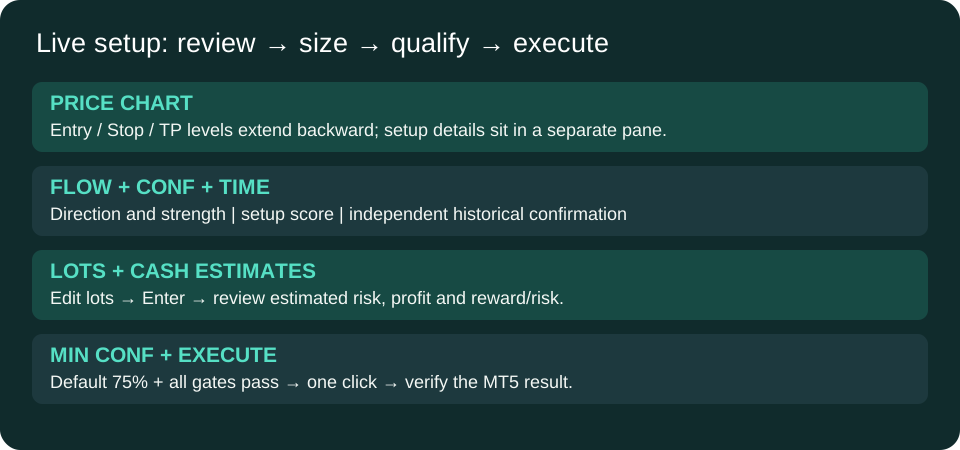
The live setup details have their own pane below the price chart. Confidence responds to the current setup; historical time-pattern confirmation is displayed independently and does not add points to CONF. The synthetic red/green strength overlay is removed.
Install and open
- Download the tool from the member downloads page and extract the ZIP.
- In MT5, select File → Open Data Folder. Copy the supplied MQL5 folders into that folder.
- Refresh Navigator and attach the EA from Expert Advisors to a demo chart. MT5 runs one EA per chart; use separate charts for separate EAs.
- Review Inputs before allowing trading. Check the Experts log after attaching.
Choose the instruments you want
| DashboardSource | What appears |
|---|---|
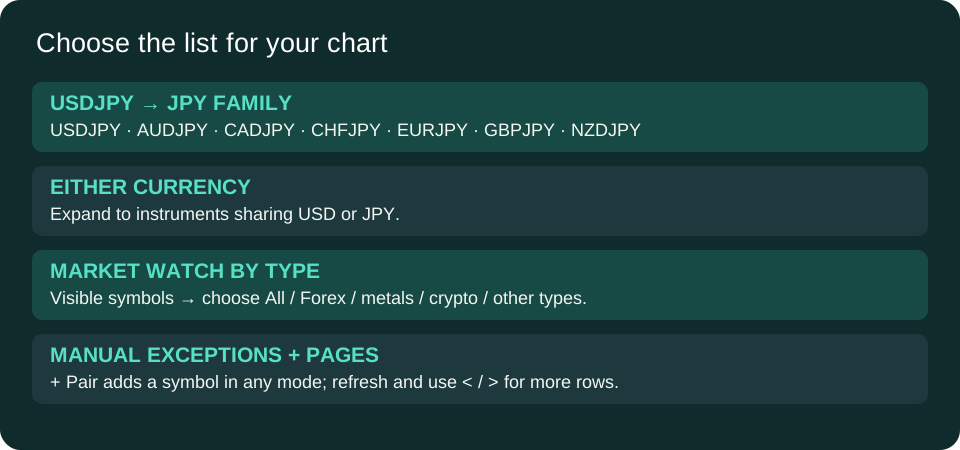
| Chart quote currency (default) | USDJPY shows the JPY family, including broker suffixes. |
| Either chart currency | USDJPY shows instruments sharing USD or JPY. |
| Market Watch | Visible Market Watch symbols, filtered by MarketWatchType: all, Forex, metals, indices, crypto, energy, stocks, futures or other. |
| Custom | Symbols in DashboardSymbols. Use exact broker names. |
On non-Forex charts, related modes use the chart asset type. Currency-family membership is not measured statistical correlation. Use + Pair or ExtraWatchlistSymbols to add exceptions in any mode. REFRESH LIST reloads membership; < / > pages through larger lists. MaxRows sets page size, up to 32. The displayed page is scanned for new signals; existing position trailing continues off-page. Toolbar choices last for this EA session; Inputs set the next start.
Read the live setup pane
| Field | Meaning |
|---|---|
| FLOW | Current buy/sell direction and strength; neutral means no directional setup. |
| CONF / grade | Setup score: HIGH CONF at 85+, STRONG at 75+, QUALIFIED at LiveSetupMinConfidence, otherwise WATCH. It is not a calibrated chance of profit. |
| TIME | Separate historical time-pattern agreement, conflict or missing match. It does not force a trade. |
| ENTRY / STOP / TP | The existing TradePlan levels for the chart instrument. Missing or invalid plans show dashes. |
| LOTS / RISK / PROFIT | Chosen manual order volume and estimated loss/gain in account currency; estimates exclude fees, swap and slippage. |
Set appearance and levels
LiveSetupBlackBelowThreshold=true uses black below 75% by default. At or above the color threshold, buy is dark green and sell is maroon; colors are configurable. This color threshold is separate from the execution threshold. LiveSetupTransparencyPct=25 controls the translucent background. LiveSetupPaneHeight=220 controls pane height. Entry, stop and target lines extend 12 historical bars back and eight periods forward by default. Widen the chart if the panel asks for more space.
Place a manual order
- Read FLOW, CONF, TIME, entry, stop and target.
- Edit LOTS and press Enter, or use − / +. Broker volume limits apply. Check the updated risk and profit estimates.
- Edit MIN CONF and press Enter. The default is 75%; accepted input range is 0–95.
- Read the gate/status message. EXECUTE is available only when confidence and all other checks pass.
- Click EXECUTE once when you intend to submit. The EA rechecks fresh data and uses a current market quote with the displayed stop and target. Actual fill price and cash risk can differ from the preview.
- Check MT5 Trade and Experts for the result. Do not retry an uncertain request until you have checked the account.
The button also checks direction, session/news/liquidity/volatility, risk state, permissions, existing positions/orders and broker limits. Lowering MIN CONF does not override these checks or the underlying signal qualification. Default cooldown is 10 seconds. An uncertain response blocks retries until the account is checked and the EA reloaded. Manual execution does not switch AUTO on; automatic volume sizing remains separate.
Other dashboard controls
Panel visibility, size and compact controls fit the dashboard to your workspace. Day Clr controls weekday candles; Shaded controls darker down candles. Check broker and local clock offsets against the intended session. WAIT / N/A indicates incomplete data or qualification; H / NO LIVE QUOTE can show historical analysis without an executable live plan. Historical swing-time matches describe past bars and do not establish a trading edge.
Verification and troubleshooting
The EA and helper compile with zero errors and zero warnings. Extracted symbol-list and execution-gate checks passed (44 and 25 checks respectively). The new docked pane and order submission have not been verified on the running terminal; no trade was placed during development. Validate on a demo chart before live use.
- Old card still visible: reattach the updated EA after installing both compiled files.
- EXECUTE locked: read its status; confirm committed inputs, fresh quotes, direction and session gates.
- No cash estimate: wait for a valid plan and broker conversion data.
- Wrong list: check source, type, exact symbol names and manual additions, then refresh.