Complete trading-tool user manual
Current manuals in one printable document. Use Ctrl+P to print or save as PDF.
Trading tools, clearly explained.
LPSLAMA Trading Group · MT5 manuals · September 2026
A practical guide to the dashboard, signal table, swing searches, forecast map, and seven-day chart colors.
Install the current version, check your broker’s symbol names and clock, then use the individual manuals to set up your chart.
Set up your chart →Get the compiled tools and the complete toolkit. Sign in with your WordPress account; your group administrator must approve download access.
Open member downloads →Install the template, understand all ten indicators, and follow the classroom study workflow.
Open the strategy guide →Where to trade · How to trade on MT5 · Trading team opportunities
New manuals and downloads
Master 16.19 adds the separate setup pane and manual execution controls. The alert tool, Order Manager and StopBot now have dedicated operating guides.
Download the compiled tools with your approved member account →
The current toolkit
| Tool | Documented version | Purpose |
|---|---|---|
| AMIMIFX Master | 16.19 | Multi-symbol dashboard and EA controls |
| MIMIFX SignalTable Advanced | 2.01 | Compact multi-timeframe votes for the chart symbol |
| Institutional Swing Search | 4.14 | Historical swing-time sequence searches |
| MIMIFX ForecastMap Repaired | 6.80 | Historical analogue paths and percentile bands |
| MIMIFX Chart Cleanup | 1.00 | Targeted removal of leftover chart objects |
| Seven-day color system | September 2026 update | Distinct weekday hues and darker down candles |
Choose the right view
Master scans a configured symbol list. SignalTable, Swing Search, and ForecastMap work with the chart they are attached to. Adding a coin to the Master dashboard does not change another indicator’s chart symbol.
About this edition
These pages describe the repaired builds reviewed for this group. Compilation and source checks are recorded; live-chart rendering, sustained performance and predictive accuracy have not been established by those checks. This is a software operating manual, not a trading strategy or a promise of returns.
AI-researched trading recommendations for the team
Our team receives AI-researched trading recommendations to help organize market research and prepare for trading sessions. The Team Trade Plan dashboard brings together candidate trading windows, symbols, directional ideas, historical test figures, time-zone conversion and an Asian-session liquidity guide.
Use the plan as a starting point for discussion with the chief trader and for checking setups with the supplied MT5 tools. Before acting, confirm the current market, broker clock, spreads, news, entry conditions and approved risk limits. A scheduled window or BUY/SELL label is a research idea, not an instruction to enter automatically.
AI research can be wrong or outdated. The dashboard displays some very small historical samples, including 2/2 results; a displayed 100% historical win rate is not a reliable probability of future success. We have not independently validated those figures here. Current team authorization and account risk rules govern execution.
Installation & first setup
Get the right file onto the right chart.
Install in each MT5 terminal
- In the terminal you want to update, select File → Open Data Folder.
- Put the supplied EA executable in
MQL5/Experts, indicators inMQL5/Indicators, and the cleanup script inMQL5/Scripts. An.ex5is the runnable file;.mq5is source code and must be compiled if no executable is supplied. - Refresh Navigator, or restart the terminal if the new entry is not listed.
- Remove the older version from the chart before attaching the replacement. Use Ctrl+I for the indicator list. An EA is managed separately through its chart menu.
- Repeat in the second terminal’s own Data Folder. Each terminal has separate files and chart settings.
This website package contains manuals, not indicator installers or account settings. Obtain the documented executable builds from your group administrator.
First chart checklist
- Open the broker’s exact symbol, such as DOGEUSD or its broker-specific suffixed name.
- Allow chart history and required timeframes to load.
- Check the displayed time against a known candle. Set server/local offsets deliberately; revisit them when clocks change.
- Attach one copy of each desired indicator. Swing Search 4.14 permits one Swing Search instance per chart.
- Check the chart at normal and maximized sizes, and after a timeframe change.
- Save your intended settings as an MT5 input preset or chart template after checking the result.
Preserve your settings
Saved chart inputs can override new defaults. If Friday is still gray, edit the seven color inputs specifically. Do not reset every EA input merely to update colors; doing so can also change trade-management settings.
Analysis and trade execution
The Master is an EA with order and trade-management code. Its AUTO control starts off in the documented build, but saved inputs and active chart state require review. Use a demo chart for first-load checks and review its execution, sizing and management settings before enabling trading. SignalTable, Swing Search, ForecastMap and the cleanup script do not place trades.
Verify the update
Check the Navigator name and chart indicator list against the version table on the home page. If initialization fails, read the MT5 Experts and Journal tabs for the actual reason.
AMIMIFX Master 16.19 FINAL
Chart-related symbol lists, a separate live setup pane and confidence-gated manual execution.
What changed in 16.19
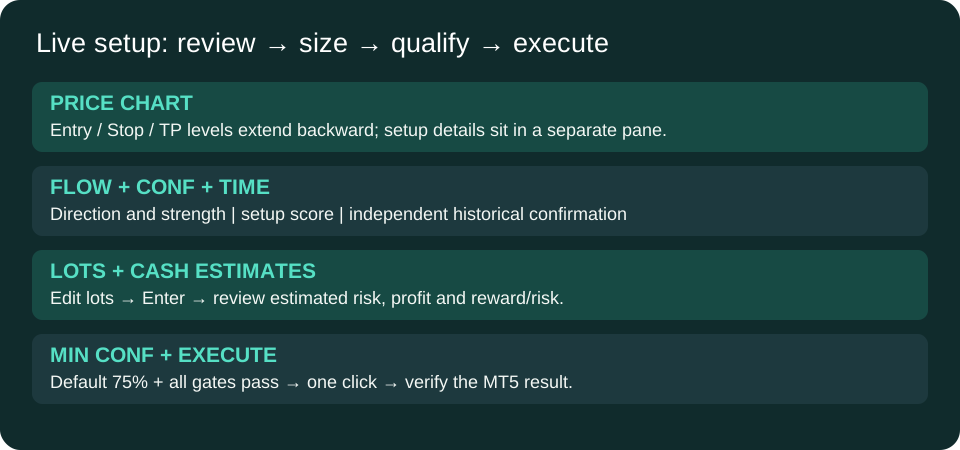
The live setup details have their own pane below the price chart. Confidence responds to the current setup; historical time-pattern confirmation is displayed independently and does not add points to CONF. The synthetic red/green strength overlay is removed.
Install and open
- Download the tool from the member downloads page and extract the ZIP.
- In MT5, select File → Open Data Folder. Copy the supplied MQL5 folders into that folder.
- Refresh Navigator and attach the EA from Expert Advisors to a demo chart. MT5 runs one EA per chart; use separate charts for separate EAs.
- Review Inputs before allowing trading. Check the Experts log after attaching.
Choose the instruments you want
| DashboardSource | What appears |
|---|---|
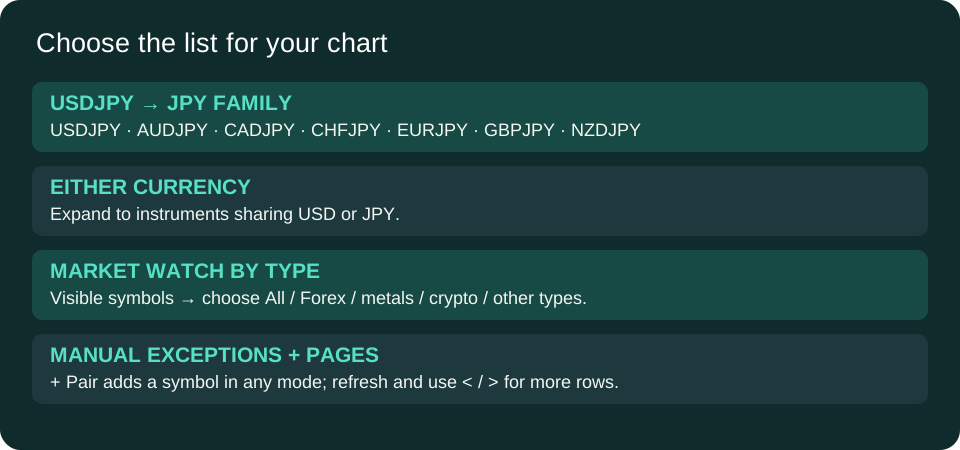
| Chart quote currency (default) | USDJPY shows the JPY family, including broker suffixes. |
| Either chart currency | USDJPY shows instruments sharing USD or JPY. |
| Market Watch | Visible Market Watch symbols, filtered by MarketWatchType: all, Forex, metals, indices, crypto, energy, stocks, futures or other. |
| Custom | Symbols in DashboardSymbols. Use exact broker names. |
On non-Forex charts, related modes use the chart asset type. Currency-family membership is not measured statistical correlation. Use + Pair or ExtraWatchlistSymbols to add exceptions in any mode. REFRESH LIST reloads membership; < / > pages through larger lists. MaxRows sets page size, up to 32. The displayed page is scanned for new signals; existing position trailing continues off-page. Toolbar choices last for this EA session; Inputs set the next start.
Read the live setup pane
| Field | Meaning |
|---|---|
| FLOW | Current buy/sell direction and strength; neutral means no directional setup. |
| CONF / grade | Setup score: HIGH CONF at 85+, STRONG at 75+, QUALIFIED at LiveSetupMinConfidence, otherwise WATCH. It is not a calibrated chance of profit. |
| TIME | Separate historical time-pattern agreement, conflict or missing match. It does not force a trade. |
| ENTRY / STOP / TP | The existing TradePlan levels for the chart instrument. Missing or invalid plans show dashes. |
| LOTS / RISK / PROFIT | Chosen manual order volume and estimated loss/gain in account currency; estimates exclude fees, swap and slippage. |
Set appearance and levels
LiveSetupBlackBelowThreshold=true uses black below 75% by default. At or above the color threshold, buy is dark green and sell is maroon; colors are configurable. This color threshold is separate from the execution threshold. LiveSetupTransparencyPct=25 controls the translucent background. LiveSetupPaneHeight=220 controls pane height. Entry, stop and target lines extend 12 historical bars back and eight periods forward by default. Widen the chart if the panel asks for more space.
Place a manual order
- Read FLOW, CONF, TIME, entry, stop and target.
- Edit LOTS and press Enter, or use − / +. Broker volume limits apply. Check the updated risk and profit estimates.
- Edit MIN CONF and press Enter. The default is 75%; accepted input range is 0–95.
- Read the gate/status message. EXECUTE is available only when confidence and all other checks pass.
- Click EXECUTE once when you intend to submit. The EA rechecks fresh data and uses a current market quote with the displayed stop and target. Actual fill price and cash risk can differ from the preview.
- Check MT5 Trade and Experts for the result. Do not retry an uncertain request until you have checked the account.
The button also checks direction, session/news/liquidity/volatility, risk state, permissions, existing positions/orders and broker limits. Lowering MIN CONF does not override these checks or the underlying signal qualification. Default cooldown is 10 seconds. An uncertain response blocks retries until the account is checked and the EA reloaded. Manual execution does not switch AUTO on; automatic volume sizing remains separate.
Other dashboard controls
Panel visibility, size and compact controls fit the dashboard to your workspace. Day Clr controls weekday candles; Shaded controls darker down candles. Check broker and local clock offsets against the intended session. WAIT / N/A indicates incomplete data or qualification; H / NO LIVE QUOTE can show historical analysis without an executable live plan. Historical swing-time matches describe past bars and do not establish a trading edge.
Verification and troubleshooting
The EA and helper compile with zero errors and zero warnings. Extracted symbol-list and execution-gate checks passed (44 and 25 checks respectively). The new docked pane and order submission have not been verified on the running terminal; no trade was placed during development. Validate on a demo chart before live use.
- Old card still visible: reattach the updated EA after installing both compiled files.
- EXECUTE locked: read its status; confirm committed inputs, fresh quotes, direction and session gates.
- No cash estimate: wait for a valid plan and broker conversion data.
- Wrong list: check source, type, exact symbol names and manual additions, then refresh.
LPS Price + Margin Alert 5.00
Multiple chart-price alerts plus an independent account margin-level alert.
Install and open
- Download the tool from the member downloads page and extract the ZIP.
- In MT5, select File → Open Data Folder. Copy the supplied MQL5 folders into that folder.
- Refresh Navigator and attach the EA from Expert Advisors to a demo chart. MT5 runs one EA per chart; use separate charts for separate EAs.
- Review Inputs before allowing trading. Check the Experts log after attaching.
Add and move price alerts
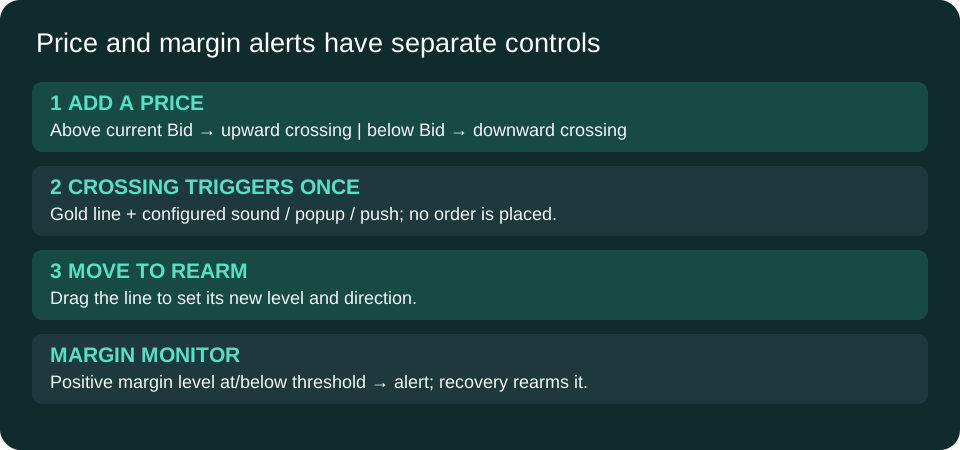
- Enter a positive price and click ADD ALERT.
- The tool assigns ABOVE or BELOW relative to the current Bid. Default colors are green above, tomato below and gold after triggering.
- Wait for Bid to cross the level from the opposite side. Merely attaching at a price already beyond the level does not create a crossing.
- Drag a registered alert line to change its level and rearm it; direction is recalculated relative to current Bid.
AutoArmDrawnLines=true adopts newly drawn horizontal lines, replacing them with registered alert objects. Turn it off if other tools create horizontal lines on the same chart. Existing lines are not automatically reconstructed as armed alerts after an EA reload; add or redraw the levels you intend to monitor.
Panel buttons
| Control | Behavior |
|---|---|
| DISARM ALL / ARM ALL | Pauses/resumes price checks. Triggered price lines remain one-shot until moved. Margin monitoring has its own switch. |
| SILENCE / UNSILENCE | Controls sound only; popup and push settings remain independent. |
| NEXT SOUND / TEST SOUND | Cycles five configured slots and tests the selected WAV. |
| CLEAR TRIGGERED | Deletes triggered registered lines. |
| DELETE ALL ALERTS | Deletes all registered alert lines immediately. |
| MARGIN ON / OFF | Toggles the separate margin monitor and reads the entered positive threshold. |
Margin alerts
Default threshold is 150% account margin level. Enter the threshold, then toggle the margin button to apply it; if that leaves the monitor OFF, toggle it back ON. Triggering occurs at or below the threshold, provided MT5 reports a positive margin level. Recovery above the threshold rearms the alert. N/A is shown for a nonpositive level. This tool does not close trades or reduce exposure.
Sound and notifications
Version 5.00 calls Windows winmm.dll and plays the selected file from the terminal Data Folder under MQL5/Sounds. Windows and DLL permission are required for this playback method. Supply your own WAV files; custom audio is not included in the download. Set Sound1–Sound5, choose StartSound, and click TEST SOUND. Empty slots and failed playback appear in the panel status. Popup defaults on; Push defaults off and requires MT5 notification setup.
What it does not do
This is an alert-only EA. It does not place orders, add stops or close positions. It checks on ticks and a one-second timer. Keep the terminal and chart running; price checks use Bid, not Ask. The build compiles with zero errors and warnings; audio, push and broker behavior still require terminal testing.
Order Manager 2.10
CSV pending orders with optional position-management features.
Install and open
- Download the tool from the member downloads page and extract the ZIP.
- In MT5, select File → Open Data Folder. Copy the supplied MQL5 folders into that folder.
- Refresh Navigator and attach the EA from Expert Advisors to a demo chart. MT5 runs one EA per chart; use separate charts for separate EAs.
- Review Inputs before allowing trading. Check the Experts log after attaching.
Which version is supplied?
ordermanager2.ex5, version 2.10, includes CSV pending orders, lot splitting, trailing, breakeven and margin reduction. The older 1.24 source was found but is not included in this release: it has a header-parsing compiler warning and a second precedence warning. Version 2.10 compiles with zero errors and warnings. Runtime trading behavior has not been verified.
Prepare the CSV
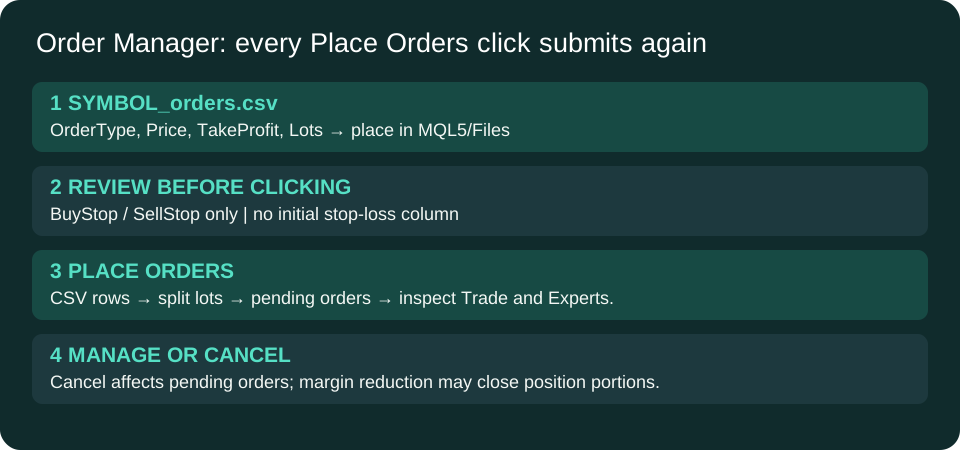
Create <exact-chart-symbol>_orders.csv in MQL5/Files, including any broker suffix. For USDJPY, the filename is USDJPY_orders.csv. Use comma-separated plain text; the four columns are OrderType,Price,TakeProfit,Lots. Supported types are BuyStop and SellStop, case-insensitive. There is no stop-loss column.
OrderType,Price,TakeProfit,Lots
# Replace placeholders using current demo-market conditions.
# BuyStop,ENTRY_ABOVE_ASK,TP_ABOVE_ENTRY,LOTS
# SellStop,ENTRY_BELOW_BID,TP_BELOW_ENTRY,LOTS
The included template contains comments only and will not submit example trades. Replace the placeholders and remove the comment marker only for rows you intend to submit. Lines starting with # or // and blank lines are skipped.
Submit and cancel
- Confirm the chart symbol, CSV contents, volume, prices and configured magic number.
- Click Place Orders once. This immediately attempts each supported row. Review the Trade tab and Experts log before doing anything else.
- Do not click again to check status: each click rereads the file and can create duplicate pending orders.
- Cancel Orders attempts to delete pending orders matching the chart symbol and magic filter. It does not close open positions.
Management settings
| Setting | Default and scope |
|---|---|
| MagicNumber | 202603; 0 treats all magic numbers as eligible in management/cancel filters. |
| MaxLotsPerOrder / MaxLotLimit | 100 lots per split / 50,000 total lots per CSV row. These are code limits, not recommended sizes; set appropriate limits before use. |
| Trailing | Enabled; start 20, distance 20, step 10 points. |
| Breakeven | Enabled; start 10, offset 10 points. Broker stop-distance rules may reject a change. |
| Margin protection | Enabled; threshold 90%, attempts 0.01-lot partial reductions up to six times per tick. |
| Enabled with 300-second cooldown; requires MT5 email configuration. |
Important scope and limitations
Trailing/breakeven management is filtered to the chart symbol. Margin reduction scans the oldest eligible position across symbols, using the magic filter; it can therefore affect another chart's position. Its volume rounding uses the chart symbol's step. Partial closing depends on account type and broker behavior. Do not assume this is an account-wide, broker-independent risk controller.
The lot splitter rounds to the volume step but does not fully clamp every chunk to the broker maximum. Send/modify results need checking in MT5. Trailing and breakeven run on ticks; the code does not refresh the stop value between their same-tick decisions. Avoid competing managers on the same position. These are documented behaviors of the existing tool, not newly repaired execution logic.
StopBot 1.00 / StopBotAlert 1.10
Initial stops, trailing stops and optional floating P/L alerts.
Install and open
- Download the tool from the member downloads page and extract the ZIP.
- In MT5, select File → Open Data Folder. Copy the supplied MQL5 folders into that folder.
- Refresh Navigator and attach the EA from Expert Advisors to a demo chart. MT5 runs one EA per chart; use separate charts for separate EAs.
- Review Inputs before allowing trading. Check the Experts log after attaching.
Choose one variant
| File | Purpose |
|---|---|
| STOPBOT.ex5 · 1.00 | Initial stop and trailing-stop management. |
| StopBotAlert.ex5 · 1.10 | The same management plus floating profit/loss alerts. |
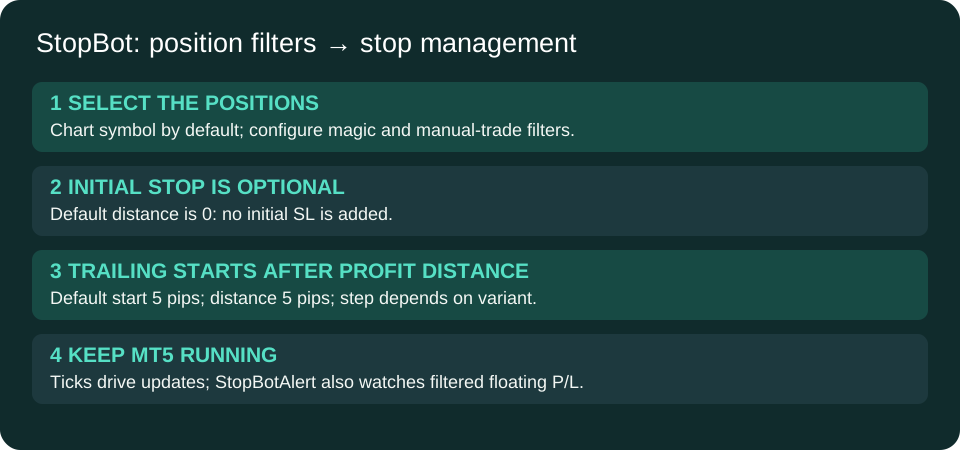
Attach one variant for a given position set. These tools do not open new trades; they modify stops on eligible existing positions. Neither has an on-chart control panel. Configure them through Inputs and check the Experts log.
Set the position scope first
InpManageCurrentSymbolOnly=true restricts management to the chart symbol. With InpUseMagicNumberFilter=false (default), all magic numbers on that symbol pass. If you enable the magic filter, matching InpMagicNumber positions pass; InpManageManualTrades=true also admits magic-zero positions. Turning current-symbol-only off broadens the scan to all symbols. Do not run it alongside another stop manager on the same positions unless you have deliberately separated their filters.
Stop settings are in pips
| Input | Default |
|---|---|
| InpTrailingStopPips | 5 pips behind current Bid for buys or Ask for sells. |
| InpTrailStartPips | Start trailing after 5 pips of favorable movement. |
| InpStopLossPips | 0: initial stop is disabled. Choose a positive distance if you want an initial SL while no stop exists. |
| InpTrailStepPips | 0 in STOPBOT 1.00; 10 in StopBotAlert 1.10. This is the required improvement before another trailing update. |
| InpSetInitialStopImmediately | true; applies only when the initial distance is positive and no stop exists, before trailing is active. |
| InpAllowStopLossLoosening | false; keep this default unless you intend otherwise. |
The pip conversion is ten points for three- or five-digit symbols and one point otherwise. Verify the resulting distance for metals, indices and crypto; a broker's informal “pip” may differ. Broker stop/freeze distances can widen the requested distance. Existing TP is preserved. The EA runs on chart ticks; terminal downtime stops new trailing adjustments.
Floating P/L alerts in 1.10
Alerts total profit plus swap for positions passing the same filters; commission is not included in that sum. Percentage thresholds use current account balance. The default is a money-profit alert at 100 account-currency units; percentage-profit, money-loss and percentage-loss alerts are off. Enter loss thresholds as positive numbers. Popup and log output default on; sound uses MT5 PlaySound and the configured filename.
Each threshold fires once until P/L retreats past its reset level. With the default 10% reset, a 100-unit profit alert rearms below 90; a 100-unit loss alert rearms when the loss shrinks below 90. The alerts themselves do not close trades. Stop modifications continue independently.
Check after attaching
- Verify the intended positions pass the filters.
- Confirm whether an initial stop is enabled; the default does not add one.
- Observe stop changes on a demo position and check broker responses in Experts.
- For 1.10, configure and test the desired notification thresholds and WAV file.
Both variants compile with zero errors and warnings. No positions were modified during preparation of this release.
SignalTable Advanced 2.01
Compact signals for one symbol across timeframes.
Read the grid
The rows are MA, WPR, SAR, MACD, OsMA, CCI, MOM, RSI and ADX. Columns cover the hybrid 5s* view and M1, M5, M15, M30, H1, H4, D1, W1 and MN1. The indicator follows the attached chart’s symbol.
Green is a buy vote, red a sell vote and WhiteSmoke a neutral signal. Standard timeframe calculations use the current unfinished bar, so votes can change before the bar closes. The 5s* column is a shared tick-based proxy, not nine conventional indicators calculated on exchange-provided five-second candles.
Totals and agreement
In compact mode, 9/0 represents buy/sell totals. AGR is the magnitude of net votes divided by nine, expressed as a percentage. WAIT with a readiness count means not all required signals are available. Correlated indicators can vote together; agreement is not a win probability.
Make it approximately half as wide
| Input | Default / use |
|---|---|
| CompactMode | true; false restores the full layout. Actual width depends on text measurements and display scaling. |
| scaleX / scaleY | 48 / 20; base column width and row spacing. |
| offsetX / offsetY | 40 / 20; distances from the selected corner. |
| corner | 0 top-left; 1 bottom-left; 2 bottom-right; 3 top-right. |
| PanelMode | PANEL_GLASS by default; transparent and solid modes are also available. |
| PanelGlassOpacity | 110 on a 0–255 scale: 0 invisible, 255 opaque. |
| PanelSolidOpacity | 255 by default. |
Prevent overlapping arrows
- Remove older SignalTable instances before attaching Advanced 2.01.
- Use CompactMode instead of simply shrinking all spacing until cells collide.
- If old objects remain after removal, use the targeted cleanup script.
The repaired version assigns its own object prefix and removes its own objects when detached. It cannot automatically identify every object left by an unrelated older tool.
Signal colors
| Role | Default |
|---|---|
| Buy / high agreement | Lime #00FF00 |
| Sell | Red #FF0000 |
| Neutral | WhiteSmoke #F5F5F5 |
| Text | Gold #FFD700 |
| Medium agreement | Yellow #FFFF00 |
| Low agreement | OrangeRed #FF4500 |
These signal colors are separate from weekday candle colors.
Institutional Swing Search 4.14
Search historical swing times, including weekends.
Find Time and Pattern do different jobs
| Control | What it searches |
|---|---|
| Find Time | Ordinary bar-open times matching the entered HH:MM. Many days can produce many matches. These are not necessarily swings. |
| Pattern | An ordered high/low swing-time sequence. Default: two swings, with ±15 minutes tolerance. This is a time-sequence search, not a price-shape similarity model. |
| NY / SVR | Changes the search/display clock between the configured offset and server time. |
| Clear | Removes manual search and pattern markers; it does not remove every regular swing label. |
| Hide Results / Show Results | Toggles the results panel. |
Run a pattern search
- Load sufficient history for the chart symbol and timeframe.
- Confirm the clock using NY/SVR and the offset input.
- Click Pattern. Read the displayed H/L sequence, number of bars and swings, and match count.
- Inspect historical match dates on the chart. The “latest match: next swing” is what happened after a historical match, not a confirmed future event.
Weekend bars are included. The panel reports Saturday and Sunday bar counts so you can check that the loaded broker history contains them.
Search and label settings
| Input | Default / effect |
|---|---|
| SwingStrength | 5 bars on each side; confirmed swings need subsequent closed bars. |
| SwingTests | 2 swings in the sequence. |
| TimeToleranceMinutes | 15; 0 requests exact clock-time matching. |
| MaxSearchBars | 10,000; older history lies outside this scan. |
| MaxSearchMarkers | 100; caps drawn markers. |
| AutoScanNewBars | true; Pattern also runs on demand. |
| SearchOnChartClick | false; ordinary clicks do not replace results. |
| LabelGapPixels / ArrowGapPixels | 6 / 16; symbol-independent wick spacing. |
| MaxLabelBars | 1,000; limits regular labels. |
| NYTimeOffsetHours | −7 default; a manual shift from server time, not automatic New York daylight-saving conversion. |
Move, fade or hide the panel
PanelTransparency=30 by default; 0 is opaque and 100 clears the background while keeping text visible. PanelCorner defaults to top-right, PanelX=10, PanelY=45, and PanelWidth=420. Select and drag the panel when PanelAllowDrag=true. Set Inputs for a persistent starting position; session dragging and hiding reset on reattachment.
Fix duplicate or ghost panels
- Press Ctrl+I and remove all older Institutional Swing Search instances.
- Refresh Navigator and attach 4.14 once.
- If saved objects from 4.11–4.14 exist, 4.14 saves a chart template before removing those recognized leftovers. If backup fails, initialization stops.
- Maximize and restore the chart to check placement.
Version 4.14 reuses its panel bitmap during resizing and refuses a second recognized Swing Search instance. It does not delete arbitrary unrelated chart objects.
No matches?
Check the selected clock, available history and displayed sequence. A longer sequence or zero tolerance can legitimately yield none. Increase history or tolerance deliberately, and compare the results; do not treat more matches as evidence of better prediction.
ForecastMap Repaired 6.80
A local historical-analogue map, built from closed bars.
Load the map
- Remove older ForecastMap copies, then attach MIMIFX_ForecastMap_Repaired_v6.80.
- Allow history to load. The panel reports loading, insufficient matches or results.
- Enable MT5 Chart Shift or leave space to the right to see the projected lines.
What the lines mean
The indicator compares the last closed chart candle’s features with historical examples. Selected cumulative paths are normalized by their historical ATR and rescaled to current volatility. This makes the calculation suitable for comparing different DOGEUSD price scales, without assuming equal price changes across regimes.
P50 is the median path, shown in Gold. P10 and P90 are outer historical percentile paths in DeepSkyBlue. Optional P25/P75 paths add the inner band. They describe the selected historical sample; they are not calibrated future confidence intervals.
Similarity is 100 / (1 + distance). It is not a win rate. UP/DOWN/FLAT describes median direction, not an order instruction.
Main inputs
| Input | Default / meaning |
|---|---|
| HistoryBars | 5,000; allowed 500–20,000. |
| ForecastBars | 24; allowed 1–100. |
| MinimumMatches / MaximumMatches | 8 / 30; too few valid matches clears the old forecast. |
| MaximumDistance | 2.5; limits acceptable analogue distance. |
| UseHigherTimeframes | true; H1/H4 confirmation only when above the chart timeframe, using closed historical bars. |
| MatchSession | false; optional grouping uses server time plus SessionOffsetHours. Weekends are not filtered out. |
| ShowInnerBands / ShowTarget | false / true. Target is the final median reference. |
Panel controls
PanelTransparency=30 uses 0 opaque to 100 clear. The default panel is top-right at X=10, Y=50, width 420. Inputs set the starting location; select and drag for session positioning. Hide Forecast Info hides the panel while leaving forecast lines visible. ToggleX and ToggleY position the button.
Updates and limitations
A two-second timer checks for a new bar or history reset; incomplete history retries every five seconds. Selected historical feature/outcome windows do not overlap, reducing duplicated examples without proving independence. Future timestamps use ordinary timeframe spacing and do not skip future market closures.
This build uses local MT5 history. It does not load legacy CSV/JSON, TimesFM or ONNX overlays and does not run an external AI model. It places no trades.
Validation
The repaired build compiled with zero errors and warnings, and 13 numerical regression checks passed. Live chart operation and walk-forward predictive accuracy have not been verified. A clean compile does not validate a trading edge.
Seven days. Seven distinct colors.
A shared weekday legend, with darker down candles.
Base and down-candle codes
The base shade applies when Close ≥ Open, including a flat candle. The darker shade applies when Close < Open. Down shades are approximately 55% of base RGB brightness. These are defaults; customized inputs can change them.
| Day | Base HEX | Down HEX | Base RGB | MQL5 name |
|---|---|---|---|---|
| Sunday | #40E0D0 | #237B72 | 64, 224, 208 | clrTurquoise |
| Monday | #1E90FF | #114F8C | 30, 144, 255 | clrDodgerBlue |
| Tuesday | #FFA500 | #8C5B00 | 255, 165, 0 | clrOrange |
| Wednesday | #00FF00 | #008C00 | 0, 255, 0 | clrLime |
| Thursday | #FFD700 | #8C7600 | 255, 215, 0 | clrGold |
| Friday | #FF6347 | #8C3627 | 255, 99, 71 | clrTomato |
| Saturday | #DA70D6 | #783E76 | 218, 112, 214 | clrOrchid |
Friday and Saturday stay separate
Friday is Tomato red; Saturday is Orchid purple; Sunday is Turquoise. A weekday is determined by the tool’s chosen clock, so a server-day boundary and a shifted local-day boundary can disagree near midnight. Align clocks before comparing tools.
Enable the directional shade
In Master, turn Day Clr and Shaded on. In Swing Search and updated candle indicators, use ShadeDownCandles=true where offered. The unfinished candle may change shade as price crosses its opening price.
Weekday strips, including the updated DaysOfWeek Bottom display, remain bright day legends. They do not encode candle direction. Signal arrows use their own buy/sell colors; a red weekday candle is not automatically a sell signal.
Keep the palette after upgrading
Existing presets may retain old colors. Edit the seven individual weekday inputs to these values, then save your preset. Review the result on a chart containing Friday, Saturday and Sunday bars.
Remove leftover chart objects
Target the old indicator’s objects without clearing your whole chart.
Use MIMIFX Chart Cleanup 1.00
- Remove the old indicator first. Otherwise it can immediately redraw what you delete.
- Drag MIMIFX_Chart_Cleanup from Navigator → Scripts onto the affected chart.
- Keep
Target=OLD_SIGNALTABLEfor the recognized older SignalTable objects. - Set
PreviewOnly=truefirst to count/list matching objects without deleting them. Read the script output in MT5. - If the target is correct, run again with
PreviewOnly=false. The script saves a chart template before deleting; a failed backup stops cleanup.
What it removes
The default targets recognized older ST_ SignalTable object names on the current chart. It does not broadly delete all arrows, labels, drawings or objects on other charts. It checks for an attached old SignalTable and blocks cleanup while that indicator remains attached.
Exact-prefix mode
EXACT_PREFIX is for a known object-name prefix belonging to an indicator you have removed. Set ObjectPrefix to that exact prefix; at least four characters are required and wildcards are not accepted. Preview the matches before deleting. Do not guess a short prefix shared with your own drawings.
Swing Search leftovers
For duplicate TIME PATTERN panels, use the 4.14 upgrade procedure. It recognizes saved Swing Search 4.11–4.14 objects and backs up before cleanup. Advanced SignalTable and current ForecastMap also remove their own objects on detachment.
Recovery
Keep the generated template backup until you have checked the chart. Applying a template can change the chart’s attached tools and settings, so inspect it on a spare chart before restoring over your working layout.
Swing time.
Structure. Confirmation.
A classroom workflow built around your Swing Search Time template. Ten custom indicators, one built-in moving average, and an explicit process for studying historical setups.
Two clean templates, all ten compiled indicators, installation instructions, this guide, exact settings, file checksums, and a practice journal. WordPress login and group approval are required to download.
Get the Swing Time strategy package →Install in MT5
- Sign in to the member downloads page and download Swing Time strategy — template + all 10 indicators. Extract the ZIP before copying anything.
- In the MT5 terminal you will use, choose File → Open Data Folder. Save your existing chart as a template first.
- Copy the package’s MQL5 folder into that Data Folder, merging its subfolders. Back up same-name files before replacing them. Do not create an extra MQL5/MQL5 folder.
- Check that
MQL5/Indicators/Downloads/atr_channels.ex5andMQL5/Profiles/Templates/LPSLAMA_SwingTime_Classroom.tplexist. Keep the Downloads and Examples subfolders exactly as packaged. - Refresh Navigator or restart MT5. Open a fresh broker chart for BTCUSD (or your broker’s suffix variant), then select H4 explicitly. The source chart records BTCUSD with period_type=1 and period_size=4; templates should not be relied on to select your symbol/timeframe.
- Right-click the chart → Templates → LPSLAMA_SwingTime_Classroom. If missing, choose Load Template and browse to the file. Do not attach the same indicators again manually.
- Press Ctrl+I: expect ten custom indicators plus Moving Average. The classroom layout has a price window and two separate MACD windows. Load history and check the Experts/Journal tabs for errors before interpreting the panels.
- Repeat for each terminal’s own Data Folder. For DOGEUSD, open your broker’s DOGE symbol first, select H4, apply the template, and verify history, tick availability and clock offset again.
The built-in Moving Average needs no separate download. SmoothAlgorithms.mqh is a compilation dependency of AFL and ATR Channels, already incorporated into their EX5 builds; students do not need it to run these compiled files. No source files, DLLs, credentials or saved trades are included.
Choose a layout
| Template | What changes |
|---|---|
| Classroom — recommended starting point | All ten indicators retained. MACD AO and MTF MACD get separate windows (different scales). S15 off to reduce tick-history work. Swing controls move below the legacy dashboard; the results panel starts hidden. SignalTable starts at Y=215. Window heights: 60% / 17% / 23%. |
| OriginalSettings_Clean | Original indicator settings and shared MACD window retained, including S15 on and the Swing results panel visible. Saved drawings removed. Use for comparing with the original configuration. |
Both copies remove the source template’s saved chart objects and reset its saved scroll timestamp. Indicators rebuild their own objects from the student’s history. The original file in your terminal is untouched. Neither layout has been visually tested in a live MT5 terminal; adjust panel positions for your screen and save your own template.
The classroom study process
- Prepare the evidence. Use a demo chart, wait for history, check the selected clock, and record the last closed H4 bar. Keep the symbol and timeframe consistent throughout the exercise.
- Describe price structure. Compare the close with the orange 13-period simple moving average and red AMA. Record whether both lines slope up, down or disagree. Note the price’s position relative to the ATR centre and bands; a band touch alone is not an entry.
- Search the swing-time sequence. Click Pattern in Swing Search. Record the displayed H/L sequence, match count, tolerance and clock. Inspect the matched dates and what followed. “Latest match: next swing” describes a historical continuation, not a scheduled future reversal.
- Compare momentum. Read completed-bar values in SignalTable and the MTF MACD lanes. Record agreement and disagreement separately. MACD AO colors measure its change, while MTF colors measure main-minus-signal; those meanings differ.
- Form a testable hypothesis. For a bullish study candidate, require a closed bar above both averages, both averages rising, and positive H4/D1 MACD differences. Reverse these conditions for a bearish candidate. These are proposed study filters, not rules encoded in the template. Record any other lane that disagrees; skip incomplete data.
- Define the paper trade before advancing. Write the precise confirmation level, hypothetical fill rule, invalidation beyond a known confirmed swing, and exit rule in the journal. Account for spread, fees and slippage. Do not move these rules after seeing the result. If no clear invalidation or confirmation exists, record “no trade”.
- Review out of sample. Advance to the next closed bar and record what was actually available then. Log losing, missing and skipped setups as well as winners. Compare with a simple baseline without swing-time matching before attributing value to the extra indicators.
Every tool in the template
The built-in Moving Average is period 13, simple method, close, orange (#FFA500). The ten custom tools below are included at their exact required paths.
| Tool | Required path inside MQL5 | Saved settings and usage |
|---|---|---|
| AFL WinnerSign | Indicators\Downloads\afl_winnersign.ex5 | Average 5; period 10; length 5; phase 15; weighted close (IPC 7). Magenta sell markers and #0A2DE2 buy markers. Treat as supplementary observations; marker stability has not been live-tested. |
| ATR Channels | Indicators\Downloads\atr_channels.ex5 | ATR 18; smoothing length 100, SMA; close (IPC 1); bands at 1.6 / 3.2 / 4.8 × ATR. Cyan centre, blue inner, red middle, purple outer. Bands show volatility distance, not guaranteed reversal levels. |
| MIMIFX MOUTEKI | Indicators\Downloads\MIMIFX MOUTEKI.ex5 | White TD high/low markers. TrendLine=false, ProjectionLines=true, HorizontLine=true, AlertsOn=false. Green/red projections are geometric references, not assured targets. |
| Adaptive Moving Average (AMA) | Indicators\Examples\AMA.ex5 | 10 / 2 / 30, shift 0; applied to open (apply=2). Red line. Included at Indicators/Examples/AMA.ex5; separate from the built-in 13-period SMA. |
| Currency Strength V3 | Indicators\MIMIFX_Currency_StrengthV3.ex5 | Momentum 14; MACD 12/26/9; Stochastic 15/5/15. Uses the chart symbol across MN1 through M1, not a cross-currency ranking. Compares differently scaled values and substitutes zero for failed reads; exclude its BUY/SELL label from the classroom decision checklist. |
| SignalTable Advanced 2.01 | Indicators\MIMIFX_SignalTable_Advanced_v2.01.ex5 | CompactMode=true, PanelMode=2, font 16; fast/slow SMA 13/24. Green buy, red sell, pale neutral. Agreement is a vote count, not a win probability. Classroom Y=215; original Y=400. |
| ForecastMap Repaired 6.80 | Indicators\MIMIFX_ForecastMap_Repaired_v6.80.ex5 | 5,000 history bars, 24 forward bars, 8–30 matches, maximum distance 2.5; higher-timeframe filter on, session filter off. Results panel starts hidden. Gold median and light-blue band setting; inner bands hidden. Historical analogue context only. |
| Institutional Swing Search 4.14 | Indicators\Institutional_Swing_Search_v4.14.ex5 | SwingStrength=5; SwingTests=2; ±15 minutes; 10,000 search bars; 1,000 labelled bars. Seven-day colors and dark down candles on. Manual NY shift −7. Classroom panel starts hidden; click Show Results to reveal it. |
| MACD AO Colors | Indicators\MACD AO Colors.ex5 | MACD 12/26/9, close. Aqua means MACD rising versus its prior value; orchid means falling or equal. Orange signal line. Histogram color does not mean MACD is above/below zero. |
| MTF MACD Visual | Indicators\MTF_MACD_Visual.ex5 | 12/26/9; 750 chart bars. W1, D1, H4, H1, M15, M5, M1 and optional synthetic S15. Green means MACD main minus signal ≥0; red means <0. All available nonzero lanes must agree, with at least four, before a consensus arrow is drawn. S15 is disabled only in the classroom layout. |
Time search, weekends and DOGEUSD
Find Time matches ordinary bar-open times. Pattern matches an ordered swing H/L time sequence. A 09:30 search on H4 can legitimately find nothing if no H4 bar opens at that clock time. Search tolerances are minutes, not bar counts.
The saved NY offset is −7 hours from broker server time. It is manual, not an automatic daylight-saving conversion. Compare a known server timestamp with New York time and set the offset for that broker/date; history spanning clock changes may need separate study periods. Weekends are included when the broker supplies weekend bars. Missing crypto history cannot be invented by the indicator.
Swing Search’s weekday colors follow its selected server/offset clock. Its labels use pixel gaps (6 for text, 16 for arrows), useful on low-price symbols such as DOGEUSD. MTF MACD consensus arrows still use 100 points; adjust that input if they are too far from DOGE candles.
Seven days, fourteen candle shades
Bright shade: Close ≥ Open. Dark shade: Close < Open, approximately 55% of the bright RGB values. These shades express candle direction, not a buy/sell instruction. The current candle’s shade can change until it closes.
| Day | Up / unchanged | Down |
|---|---|---|
| Sunday | #40E0D0 | #237B72 |
| Monday | #1E90FF | #114F8C |
| Tuesday | #FFA500 | #8C5B00 |
| Wednesday | #00FF00 | #008C00 |
| Thursday | #FFD700 | #8C7600 |
| Friday | #FF6347 | #8C3627 |
| Saturday | #DA70D6 | #783E76 |
Known limitations and troubleshooting
- Legacy dashboard: Currency Strength V3 compares unlike numeric scales and treats failed buffer reads as zero. A visible BUY/SELL label therefore does not prove healthy data. It also uses generic object names and lacks cleanup in the reviewed source. Keep it for template compatibility, but exclude it from the classroom signal checklist. Remove it from your own saved layout if it adds clutter.
- Panel overlap: expand the chart, hide Swing/Forecast results when unused, or adjust their PanelX/PanelY inputs. SignalTable uses offsetX/offsetY. The legacy dashboard is fixed near the top-left; the classroom Swing controls start at Y=160.
- Flattened MACD: use the classroom layout. The original puts MACD values and normalized MTF lanes into the same window. Different scales can hide useful detail.
- S15 blank or slow: MT5 has no native S15 chart period here. MTF builds it from up to 12 hours of broker ticks. Blank older values are expected. The classroom template disables it; turn it on only if you need the extra tick-history work.
- Slow chart: start with one chart, leave S15 off, then reduce MTF InpMaxBars, Swing MaxSearchBars and Forecast HistoryBars if needed. Lower history changes the search sample. This package has not had a sustained terminal-performance test.
- Cannot load indicator: check the exact subfolder, broker terminal Data Folder, file size/checksum and Experts log. Refresh Navigator or restart. The files are MT5 EX5 files and do not work in MT4.
- No swing/forecast matches: wait for history and check the clock, tolerance and required match count. Zero matches can be a valid result; do not loosen filters solely to obtain a signal.
- Old ghost text: apply the clean template to a fresh chart. Save any personal drawings before cleaning an existing chart. The separate Chart Cleanup tool on the site is optional and is not attached by this template.
- Predictive claims: more indicators often reuse the same price data. Their votes are correlated and are not independent confirmations or calibrated probabilities.
Practice journal
The package includes a CSV with columns for symbol, timeframe, broker clock, decision time, available closed bar, swing sequence, matches, momentum, proposed entry/invalidation/exit, costs, result and notes. Record enough information to reproduce the decision without viewing future bars.
Package verification and credits
All ten referenced EX5 files were located. Template references, ZIP integrity, checksums and absence of source files were checked. The reviewed sources have no external iCustom or DLL import dependencies. This does not establish a broker-independent live run or prove that every binary corresponds exactly to its adjacent source.
AFL WinnerSign: Andrey Voytenko. ATR Channels: Luis Guilherme Damiani. MACD AO Colors: Vladimir Karputov. AMA: MetaQuotes example. Original attribution is retained; the remaining custom tools use their supplied names. The exact input blocks and file inventory are included in the package.
Reference: MetaQuotes on chart templates. Historical results do not establish future performance; see the SEC investor bulletin on performance claims.
Troubleshooting & quick reference
Start with the symptom, then check the data and chart state.
| Symptom | Check / action |
|---|---|
| New crypto does not appear | Add its exact broker name to DashboardSymbols or + Pair; check MaxRows. CryptoSymbols only classifies assets. |
| Only the chart symbol changes | SignalTable, Swing Search and ForecastMap follow the chart symbol. Use Master for a multi-symbol list. |
| WAIT or N/A | Load required history/timeframes and inspect quote freshness and row reasons. Unavailable data must remain unavailable. |
| No swing matches | Click Pattern rather than Find Time. Check clock, sequence length, history depth and tolerance. Zero matches can be valid. |
| Many identical time matches | Find Time matches bar opens across dates; it does not restrict matches to swing highs/lows. |
| TIME PATTERN appears twice | Remove all older Swing Search instances via Ctrl+I, then attach 4.14 once. |
| DOGE labels are far from wicks | Use the current version’s pixel-gap settings, rather than legacy point offsets. |
| Friday and Saturday look merged | Set Friday #FF6347 and Saturday #DA70D6; review saved inputs and clock boundaries. |
| Cannot see candle direction | Enable down-candle shading; bright means close at/above open, dark means close below open. |
| SignalTable too wide | Set CompactMode=true, then adjust offsets/corner. Remove overlapping older copies. |
| Forecast absent | Read loading/minimum-match status; allow history, and enable Chart Shift to see future space. |
| Old arrows remain after removal | Run the targeted cleanup preview on the affected chart. |
| Chart slows or freezes | Reduce symbols, scan depth and label history; test one tool at a time on a spare chart and inspect Experts/Journal. |
Transparency reference
| Tool | Clear background | Opaque background |
|---|---|---|
| Swing Search / ForecastMap | PanelTransparency = 100 | PanelTransparency = 0 |
| SignalTable | Opacity = 0 | Opacity = 255 |
Useful details for a support request
Include the exact tool/version, broker symbol, timeframe, whether the bar was closed, relevant input values, and the error text from Experts/Journal. A cropped chart can help, but remove account numbers, balances and private information before sharing.
Scope of verification
The documented repaired builds were compiled and their installed files checked. ForecastMap also received numerical regression checks. These checks do not replace live rendering tests, broker-history checks, a sustained responsiveness test or strategy validation.
LPSLAMA / Trading education
Where to trade
Choose an eligible broker, learn the platform, and begin with a demo account.
Broker referral / LHFX
Explore LHFX
LHFX offers MetaTrader 5. Use the link below to review its registration process and determine whether its account offering is available to you.
Referral disclosure: This is our referral link. We may receive compensation if you sign up or trade through it.
Visit LHFX registration →You will leave LPSLAMA. Broker approval, fees, withdrawals and account terms are controlled by LHFX. A referral is not a guarantee of suitability, safety or returns.
Check the account before depositing
- Eligibility and legal entity: confirm the entity that will hold your account and whether it can serve residents of your country. Verify any claimed authorization directly with the relevant regulator.
- MT5 compatibility: confirm desktop MT5, the correct login server, and the symbols you need. Broker suffixes and contract specifications differ. Our EX5 tools are for desktop MT5; mobile and web versions do not run this custom indicator package.
- Total cost: review spreads, commissions, overnight financing, leverage, margin and deposit/withdrawal conditions. Understand how losses and negative balances are handled.
- Practice first: use a demo environment to learn order handling and our tools. Demo fills and results may differ from live trading.
A broker account and a team place are separate
Opening an account through the referral link does not enroll you in the LPSLAMA training program, approve member downloads, or grant access to company capital. Company trading access follows the team’s graduation and account-authorization process.
Know the risk
Leveraged trading can produce rapid losses. Review the broker’s risk disclosures and decide whether the products and potential losses fit your circumstances. LPSLAMA’s tools display analysis; they do not remove market risk.
Broker information checked against LHFX’s official site on 27 September 2026. Check current terms again before opening an account.
LPSLAMA / Trading education
How to trade on MT5
A practical learning path using the LPSLAMA tools—from chart preparation to reviewing a demo trade.
This guide teaches the platform and a repeatable research process. It does not provide a live buy/sell recommendation. Keep the Master EA’s AUTO feature off while learning manual order entry.
Connect to your account
Install desktop MT5 from a trusted source and use the login server supplied by your eligible broker. Confirm that you are connected to the intended demo account, with current quotes. Keep your password private.
Install the tools once
After your WordPress account is approved, download and extract the Swing Time package. In MT5, use File → Open Data Folder and merge the package’s MQL5 folder there. Refresh Navigator or restart. Open a fresh chart and apply LPSLAMA_SwingTime_Classroom. See the complete installation steps.
Prepare the chart
Select the broker’s exact symbol and the timeframe you intend to study. The classroom exercise uses H4. Wait for history; confirm the clock offset and session colors. WAIT or missing values mean the setup is not ready to interpret. Check the symbol’s Specification in Market Watch for contract size, tick size/value, volume steps and trading hours.
Build a written trade idea
Use averages and ATR Channels to describe price structure. Search swing-time sequences with Pattern, compare momentum across timeframes, and record disagreements. Decide the hypothetical entry, invalidation and exit before placing an order. The strategy study checklist explains this sequence.
Choose volume from risk, not from a signal color
Translate the entry-to-stop distance into account-currency loss for the selected contract. Use broker specifications and a verified calculator; include fees and allow for slippage. Round volume down to an allowed step. If the broker’s minimum volume exceeds your approved risk budget, skip the trade. Margin required is not the maximum possible loss.
Practice placing an order
Open New Order (F9 on desktop). Recheck account, symbol, volume, stop loss and take profit. Choose immediate execution or a pending order deliberately; available choices depend on the broker. On demo, submit only the direction and order type in your written plan. A market order may fill away from the displayed price.
Confirm and manage the result
Check the Trade tab for the actual position or pending order, fill price, volume and protective levels. A submitted request can fail or be rejected. Modify or close the specific position through its controls; do not assume an opposite order will close it, because hedging and netting accounts behave differently. Stop-loss orders can slip and do not guarantee an exact exit price.
Review and hand over
Record the outcome, costs, rule adherence and any missing data. For team practice, document open positions, protective orders, pending orders and remaining risk before a shift handover. Confirm who is responsible for the account; never share credentials casually.
Use each tool for its job
| Tool | Use it for | Do not mistake it for |
|---|---|---|
| AMIMIFX Master | Scanning a configured symbol list; reviewing readiness and possible setups. | A signal-only indicator: this EA has execution features. AUTO and terminal trading permissions matter. |
| SignalTable | Comparing current chart-symbol indicator votes across timeframes. | A win probability. Its ordinary timeframe votes can change on the unfinished bar; record what was visible at your decision time. |
| Swing Search | Finding ordered historical high/low time sequences; identifying confirmed pivots. | A future appointment with a reversal. A pivot requires later bars to confirm. |
| ForecastMap | Viewing historical analogue paths and ranges. | A guaranteed target or calibrated probability. |
| ATR, averages and MACD | Describing volatility, trend and momentum. | Independent proof from every indicator; many use the same price data. |
| Seven-day colors | Identifying weekdays and candle direction: darker means Close < Open. | An entry instruction. |
From practice to the trading team
Learn the tools, keep a reviewable journal, and demonstrate the program’s graduation requirements. Company-capital trading requires separate authorization and agreed risk rules. Download approval alone is not trading authorization.
See the team opportunity →Platform reference: MetaQuotes: executing trades, symbol specifications, and orders, deals and positions. Exact controls and execution rules depend on the account and broker.
LPSLAMA / Brokerage career + trading development
Real Estate / Trader Opportunity
Build your real estate business with our brokerage. Develop trading skills with a team as a potential supplement to your income.
Join Luxury Property Solutions, LLC as a Florida real estate agent and work toward a role on our company trading team. Real estate is your core business; supervised trading is intended to supplement your income while you build and serve your real estate client base.
A Florida real estate license is required
You must obtain and maintain a Florida real estate license and affiliate with our brokerage to participate in this combined opportunity. Before performing licensed real estate services, your license must be active under the appropriate broker. If you are not yet licensed, discuss your licensing path with us before enrolling; training access does not authorize real estate practice.
Florida’s licensing and activation requirements are separate from our trading assessment. Review the Florida DBPR sales associate requirements. The $500 initial payment goes toward company real estate program registration and program access. Confirm separately which course, examination, state licensing, renewal or brokerage costs are included; payment does not itself grant a Florida license.
Why this is different from buying a funded-account challenge
This opportunity is structured around a brokerage relationship, trading education and supervised participation in company trading. We are not offering the purchase of a personal “funded account” or a challenge pass that automatically grants an advertised capital balance. The intended progression is training, assessment, company authorization, small real accounts and review for larger allocations.
The distinction is the working relationship and purpose: build a real estate business with our brokerage, then develop an additional trading skill within a four-person team supported by a chief trader. Company capital still needs risk controls and written terms. This description does not mean unrestricted trading, guaranteed funding or a guaranteed return on the training fee.
Why this may be a better fit for you
If you want a brokerage career, shared accountability and hands-on trading development, this model may suit you better than pursuing a standalone retail challenge. Shift coordination can help you plan client appointments and trading responsibilities; it does not mean unlimited hours or automatic schedule changes. No evidence establishes that you will earn more or fare better financially than with another program. Both real estate commissions and trading income are variable.
Funded-account programs compared with our opportunity
There is no single set of rules covering every funded-account business. The table covers the main limitations and contract questions to compare, with examples from current provider documentation. Rules differ by provider, product and stage. An unspecified LPSLAMA term is not a promise that the restriction is absent.
| Topic | Retail funded-account programs: what to check | LPSLAMA Real Estate / Trader Opportunity |
|---|---|---|
| Purpose and relationship | Usually a trading evaluation/account program; a brokerage career is not part of the cited trading objectives. | Florida licensing and affiliation with our real estate brokerage are required. Trading is intended as supplemental activity. |
| Upfront and repeat costs | Check evaluation, subscription, activation, reset and data charges in the specific offer; not all providers charge all of these. | $5,000 total program fee, paid in two steps: $500 initially and $4,500 invoiced when class starts. Any further fees, refund rights and separate brokerage/licensing expenses must be stated before enrollment. No “fee-free” claim is made. |
| Passing requirements | FTMO publishes phase-specific profit targets and trading objectives. Topstep requires a profit target and consistency target. [1][2] | Four weeks of system adherence, correct trade execution and successful money management, with each week ending in profit. Failed-week handling and profit calculation must be defined. |
| Daily loss and drawdown | Daily-loss and maximum-loss rules can limit activity; calculations differ. FTMO describes both daily and overall loss limits. [1] | Company risk limits, drawdown calculations, stop rules and loss responsibility must be agreed. Company capital is not permission to take unlimited risk. |
| Consistency / best-day rules | Some products limit the share of profit attributable to a single day. FTMO 1-Step and Topstep publish different consistency conditions. [1][2] | The stated assessment requires profitable weeks and system discipline. No separate best-day percentage has been specified; confirm the complete rules in writing. |
| Payout conditions | Winning-day counts, consistency conditions, caps and payout effects can apply. Topstep’s policy varies by account and payout path. [3] | Profit share, payout timing, deductions and eligibility are not yet stated here. A team role does not imply immediate or unlimited withdrawals. |
| Simulated versus live capital | “Funded” does not always mean a live brokerage account. Topstep says Express Funded Account payments are based on simulated results. [4] | The stated post-graduation stage is 30 days on small real accounts using company capital, subject to authorization. Assessment account type and actual capital amounts must be confirmed. |
| Account size and scaling | Check actual loss allowance and scaling rules, rather than treating the advertised balance as spendable cash. | Larger allocations follow review; no amount or automatic scaling schedule is promised. |
| Time limits and inactivity | Check minimum days, assessment deadlines, inactivity and renewal terms. Do not assume every program has a short deadline. | Four-week assessment followed by a 30-day development stage. Absence, restart and suspension terms must be agreed. |
| News, overnight and weekend trades | Check the specific account’s session and holding restrictions; they are not uniform across the industry. | Permitted sessions and holding periods require company approval. Weekend-capable software does not establish permission to trade. |
| Markets, automation and trade methods | Check instruments, size/leverage caps, EA use, copying, hedging and prohibited strategies. | Use the approved system, accounts and tools under company rules. Supplied MT5 indicators do not imply every strategy or broker is authorized. |
| Support and scheduling | Coaching and schedule flexibility depend on the provider; some offer education and support. | Four-person trading teams, four-hour daily shifts and chief-trader assistance are part of the described model. Agree coverage around real estate duties. |
| Eligibility and termination | Check residency, identity verification, account ownership, rule breaches and termination rights. | Florida real estate licensing, brokerage affiliation, program review and written trading authorization are required. Separate brokerage and trading terms apply. |
Provider examples checked 27 September 2026: [1] FTMO Trading Objectives; [2] Topstep Trading Combine parameters; [3] Topstep payout policy; [4] Topstep Express Funded Account parameters. These examples are not an exhaustive review or a claim that every competitor has the same restrictions.
Request the training outline, graduation requirements and written company-capital terms before deciding whether to enroll. Paying the access fee alone does not establish graduation or permission to trade a company account.
Apply for the Real Estate / Trader Opportunity →Questions? Contact team@lpslama.com or call 866-577-5262, extension 5. The application does not collect payment or trading-account passwords.
Two steps to enrollment
Total program fee: $5,000 USD. Submit your application and review the written terms before paying. Keep your application reference and PayPal receipt. The team will verify payment and arrange program access; checkout does not automatically approve a live trading account.
Prefer cash, check or crypto?
We also accept cash, checks and cryptocurrency as alternatives to PayPal, debit card or credit card. You must request payment instructions individually for the method you want to use before making your payment.
Email team@lpslama.com or call 866-577-5262, extension 5. Include your name, application reference if available, preferred payment method, and whether you are paying the $500 initial amount or the $4,500 class-start invoice. The team will provide the instructions for your payment.
For cash, request a handover arrangement and receipt. For checks, request the exact payee and delivery instructions. For crypto, request the accepted currency, network, amount and receiving address for your specific payment before sending funds.
Classes built around your availability
We will speak with each applicant individually about current work or school commitments. Classes will be formed for people with similar available times, using preferred daily 2–4-hour blocks for learning and trading. Tell us your preferred days, start/end times, time zone and alternative windows. Your class start date and schedule will be confirmed with you.
Learning blocks are separate from the described post-graduation four-hour team trading shifts. No previous trading or real estate experience is necessary to apply. We ask about experience to understand your starting point. Florida licensing requirements still apply to real estate practice.
Your path through the program
Real estate foundation: obtain your Florida license, complete brokerage affiliation and agree how client service and trading shifts will fit together. Brokerage affiliation and trading-account approval are separate decisions.
Graduation: four weeks of demonstrated ability
Students must show that they can follow the trading system, enter trades correctly, and finish each week in profit. Graduation follows four weeks of successful money management, with the results and rule adherence reviewed by the program.
Weekly profitability is an assessment requirement, not a promised outcome. A profit alone does not replace following the system and managing risk. The assessment account type, profit calculation, loss limits and handling of an unsuccessful week must be explained before enrollment.
The next 30 days: small real accounts
After graduation, students continue learning on small real trading accounts for the next 30 days. This stage offers an opportunity to earn while developing the discipline needed for larger account sizes. Actual earnings depend on results and the agreed compensation terms; losses are possible. Larger allocations require review and authorization, rather than following automatically from elapsed time.
AI-researched trading recommendations for the team
Our team receives AI-researched trading recommendations to help organize market research and prepare for trading sessions. The Team Trade Plan dashboard brings together candidate trading windows, symbols, directional ideas, historical test figures, time-zone conversion and an Asian-session liquidity guide.
Use the plan as a starting point for discussion with the chief trader and for checking setups with the supplied MT5 tools. Before acting, confirm the current market, broker clock, spreads, news, entry conditions and approved risk limits. A scheduled window or BUY/SELL label is a research idea, not an instruction to enter automatically.
AI research can be wrong or outdated. The dashboard displays some very small historical samples, including 2/2 results; a displayed 100% historical win rate is not a reliable probability of future success. We have not independently validated those figures here. Current team authorization and account risk rules govern execution.
What you will prepare to do
- Set up desktop MT5 and use the supplied indicators, templates and manuals.
- Read market structure, swing-time patterns and momentum without treating every marker as an order.
- Plan risk, practice order entry and document decisions.
- Communicate clearly during shifts and handovers, with support from a chief trader.
Explore the MT5 learning guide and Swing Time strategy lab to see the current learning materials. Download access uses individual WordPress accounts approved by the group administrator.
Company capital and team trading
The intended post-graduation model uses company capital in a four-person team, with four-hour daily shifts and a chief trader providing support. Actual account access, capital allocation, schedule and permitted activity must be established in the participant’s written agreement before trading begins.
The total program fee is $5,000: $500 toward real estate program registration and program access, followed by a $4,500 invoice when your class starts. It is not a stated brokerage deposit or a promised personal capital allocation. No capital amount, salary, profit split, earnings level or guaranteed placement is specified on this page.
Get these terms before paying
| Topic | Details to confirm in writing |
|---|---|
| Brokerage relationship | License activation, affiliation requirements, agent responsibilities, commission split, brokerage expenses, lead arrangements and participant status. Real estate commissions and trading compensation must be documented separately. |
| Training and fees | What the $5,000 covers, course duration, delivery, taxes or other fees, payment schedule, and cancellation/refund policy. |
| Graduation | Four-week review: system adherence, trade execution, successful money management and profit at the end of every week. Confirm loss limits, profit calculation and what happens after an unsuccessful week. |
| Company capital | Assessment account type; small real-account size for the next 30 days; criteria and timing for larger allocations; approved markets, broker and account ownership. |
| Compensation and losses | Profit share, payout timing, charges, loss responsibility, drawdown limits and suspension rules. |
| Team arrangements | Shift times and time zone, trading days, how the four members share coverage, chief trader availability, and participant status. |
The four-week assessment and following 30-day real-account stage are described above. The remaining financial and operational terms must be provided in writing. Request the complete terms before making a financial commitment. The registration page links to the one-time $500 PayPal payment. The $4,500 class-start invoice is separate.
Questions before you join
What if I do not pass my first assessment for a live account?
You have not failed—you need more lessons and practice before moving to a live account. We will teach you the strategies and help you work on following the system, entering trades correctly and managing money. Live-account access follows a successful assessment and company authorization; it is not automatic after the first attempt.
Before enrolling, ask how additional lessons and reassessment are scheduled and whether any additional fees apply.
Can I choose real estate without trading?
Yes. If you decide that you want to focus entirely on real estate and not trade, that choice is yours. You can pursue your real estate business with our brokerage under the agreed affiliation terms. Trading is an optional supplemental path; Florida licensing and brokerage requirements still apply to your real estate work.
Before paying, confirm which fees apply to the path you choose. Choosing not to trade does not, by itself, establish a refund of a previously paid training fee; the written cancellation and refund terms apply.
Where will we trade?
You can trade from home, which is our preferred arrangement. You can also apply to trade at our Brickell office. Office space is limited and attendance must be arranged with the team. Working from home still requires the agreed trading shifts, company account authorization and team procedures.
How do I apply for a place at the Brickell office?
Apply now and indicate in the application’s questions field that you would like to trade at the Brickell office. Contact team@lpslama.com or call 866-577-5262, extension 5 to confirm availability.
For the trading path, review the terms and pay the $500 initial amount through our registration payment page. The remaining $4,500 will be invoiced when your class starts. Payment alone does not guarantee an office seat, graduation or live-account access. Confirm your office arrangement with the team before paying on that basis.
Does paying $5,000 guarantee company capital?
No automatic capital access is established by payment. The described pathway requires graduation and a separate company trading authorization under written terms.
Is this a guaranteed job or income?
No job, salary or earnings guarantee is made here. Confirm the participant relationship and compensation arrangements before enrolling. Trading can lose money, including company capital.
Do I need to open an LHFX account to apply?
A referral signup does not enroll you in the team. Confirm the approved broker and eligibility with the program before opening or funding an account. LHFX says it does not serve U.S. citizens or residents; see Where to trade.
How do I get the MT5 tools?
Use your individual WordPress login on the member downloads page. The administrator must approve access. Tool access does not authorize trading a company account.
What is the next step?
Complete the trading-team application. The team will review your experience, Florida licensing status, willingness to affiliate with the brokerage, and availability. Include your licensing status in the application’s background or questions field; do not send identity documents through that field. For questions, email team@lpslama.com or call 866-577-5262, extension 5.